Intermediate
Alias
If you use the Docker image (see System Setup)
and you haven't set up the pandock alias yet, replace pandock with
docker run --rm -it --user $(id -u):$(id -g) -v .:/data schuam/dac:v1.0.0
in the following commands. If you installed Pandoc directly on your system,
replace pandock with just pandoc. For more information, refer to the
System Setup page.
Note
All commands in this tutorial should be run from within the project
directory (solution) that was mentioned on the Layout page.
Make sure you're in the correct directory. If you put the solutions
directory into your home directory, you can navigate to the solutions
directory like so:
cd
cd solution
If you placed the solutions project somewhere else, use the appropriate
cd command to navigate to that place.
After completing the Beginner section, you should have a project directory that looks like this:
$ tree
.
├── build
│   └── solution_beginner_1.pdf
├── img
│   └── image.jpg
└── src
    ├── bib
    ├── md
    │   └── solution.md
    └── meta
Enumerated Sections
Let's begin improving the output by adding section numbers to the PDF. This is simple to achieve by slightly modifying the Pandoc command with the --number-sections option:
$ pandock \
     --number-sections \
     -o build/solution_intermediate_1.pdf \
     src/md/solution.md
Note
For readability, I've split the command into multiple lines. The "\" character can be used for that.
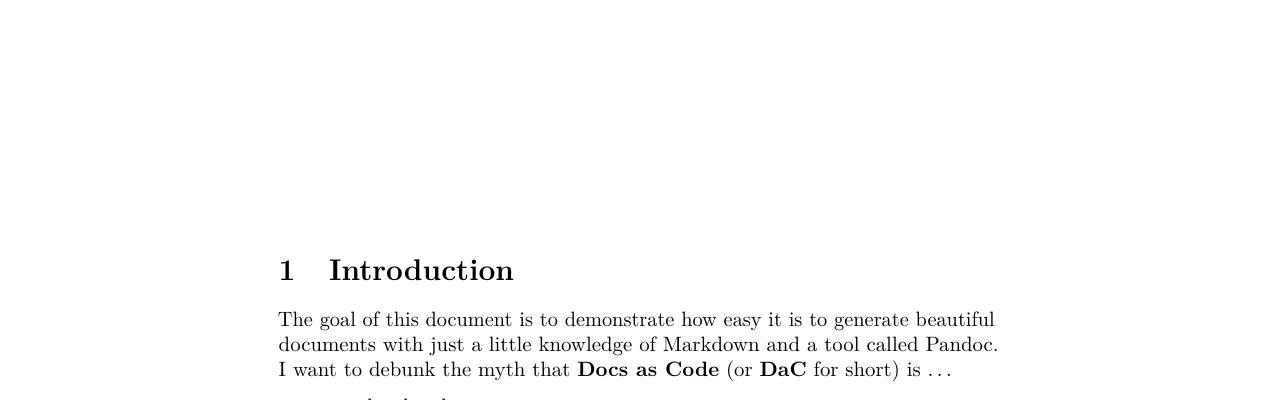
After Pandoc has done its job, the new file solution_intermediate_1.pdf will
appear in the build directory. If you prefer not to run the command yourself,
you can download the generated
file. Not a lot
has changed yet, we actually just added section numbers  .
.
Front Matter
The next step is to add front matter, which contains metadata about the document. Metadata falls into two categories:
- Content Descriptive Metadata: This includes information like the title or author(s). I consider this actual front matter and typically place it at the top of the main source file to provide context.
- Layout Metadata: These variables affect the document’s appearance. I usually store this type in separate files, which allows me to generate different outputs from the same source. I will show how this is done in the next section.
Let's have a look at the front matter:
| src/md/front_matter.md | |
|---|---|
1 2 3 4 5 6 7 8 9 10 11 | |
The three dashes --- at the beginning and end signify that the section
contains YAML metadata and are required when providing such metadata. The
variables like title, author, and subject should be fairly
self-explanatory. If you want more authors, simply add more authors as further
bullet points.
Though some fields like subject and keyword don’t appear visibly in the PDF,
they embed metadata into the PDF file, which can be read later. For more
information, check out the guide What is PDF Metadata: A Complete
Guide.
I will show you a way to read out that data on Linux a little later.
Now let’s generate a new PDF with the front matter. Copy the above code into a
file called front_matter.md in the src/md directory and then run the
command:
$ pandock \
     --number-sections \
     -o build/solution_intermediate_2.pdf \
     src/md/front_matter.md \
     src/md/solution.md
This will generate a PDF with the front matter on the first page:
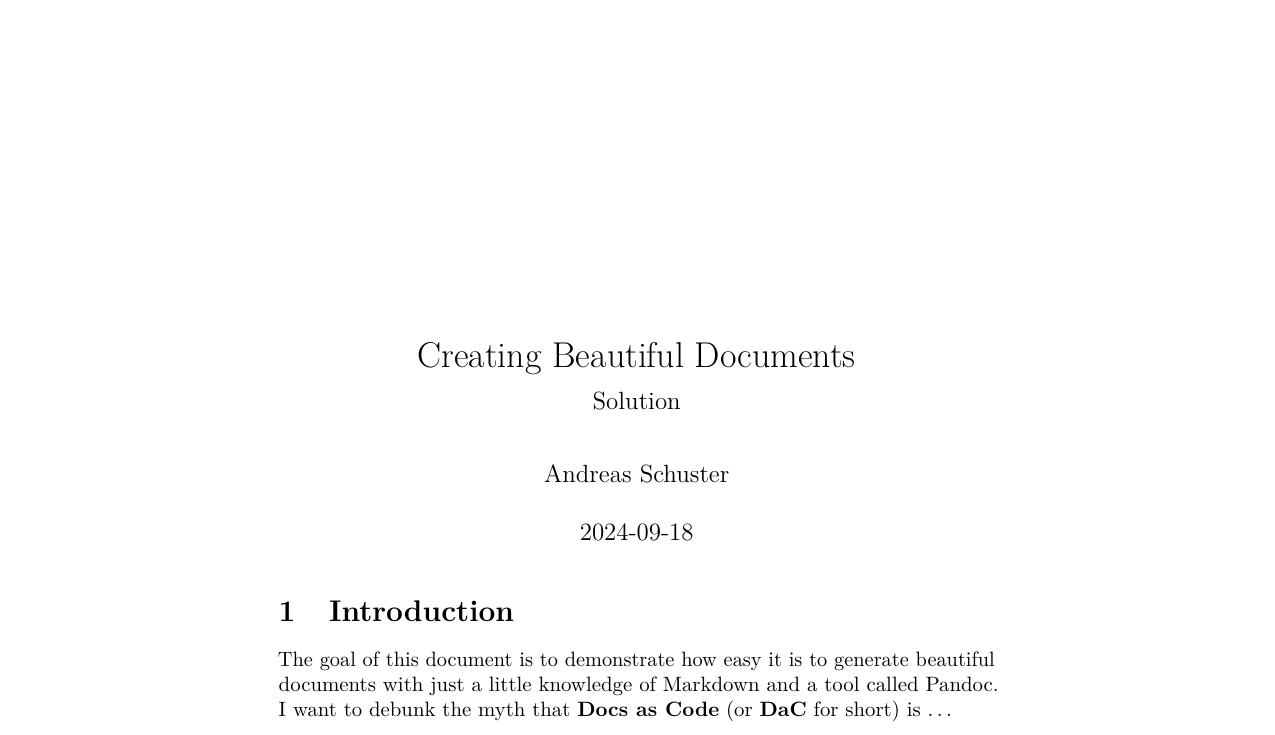
Again, if you don't want to run the command yourself, you can download the generated PDF.
You can use the tool pdfinfo (at least on Linux) to read out the metadata of
a PDF file:
$ pdfinfo build/solution_intermediate_2.pdf
Title:           Creating Beautiful Documents
Subject:         Docs as Code
Keywords:        Markdown, Pandoc
Author:          Andreas Schuster
Creator:         LaTeX via pandoc
Producer:        pdfTeX-1.40.24
(...)
You can explore more Metadata
variables in Pandoc User's
Guide. They allow you to add an abstract for example.
Style
Now, let’s enhance the visual style of the document by adding more metadata:
| src/meta/style_intermediate.yml | |
|---|---|
1 2 3 4 5 6 7 8 9 10 11 12 13 14 15 16 17 18 19 20 | |
Save this as style_intermediate.yml in the src/meta directory.
Additionally, we need some information for a citation within the main source
code. This is added in the form of a BibLaTeX file:
| src/bib/bibliography.bib | |
|---|---|
1 2 3 4 5 6 7 | |
Copy this code into a file called bibliography.bib in the src/bib
directory. If you write on academic papers, you will most likely need such
bibliography data. A BibLaTeX file is one way to provide it. If you want to
learn more about citations, bibliographic data, and BibLaTeX, you might want to
read the Citations section in
Pandoc's User's Guide, the article Bibliography management with
BibLaTeX
(talks about LaTeX quite a bit, but is still very useful), or BibLaTeX –
Sophisticated Bibliographies in LATEX.
Note
I just realized that the article Bibliography management with
biblatex
uses the same Einstein reference as I do in the solutions.md file. This is
honestly a total coincident .
Once the files are set up, generate the new PDF using this command:
$ pandock \
     --number-sections \
     --citeproc \
     --metadata-file=src/meta/style_intermediate.yml \
     -o build/solution_intermediate_3.pdf \
     src/md/front_matter.md \
     src/md/solution.md
Warning
This command will issue three warnings:
[WARNING] Citeproc: citation eq:mass_energy not found
[WARNING] Citeproc: citation fig:example not found
[WARNING] Citeproc: citation tbl:example_table not found
Don't worry about them for now. It will still generate the desired PDF. You can download the generated PDF if you don't want to run the command yourself.
Let’s break down the style_intermediate.yml file:
classoption:
  - titlepage
Pandoc uses LaTeX in the background, and LaTeX offers different "document
classes" to define the structure of your document. By default, Pandoc uses the
article class, but you could switch it to something else, like book, by
adding a line such as documentclass: book. Each class has different
formatting options. The details are out of the scope of this tutorial. If you
want to learn more about it, the LaTeX/Document
Structure article on
Wikibooks might be a good starting point. Anyway the option titlepage that we
set causes the generation of a title page. Who would have thought  ?
?
papersize: a4
This line defines the paper size. Here, we’re using DIN A4 (210mm by 297mm).
geometry:
  - top=3.5cm
  - bottom=3.5cm
  - left=3.5cm
  - right=3.5cm
  - heightrounded
These lines set the page margins. We’ve adjusted the margins for all sides
(top, bottom, left, and right) to 3.5 cm. heightrounded helps LaTeX to fill
pages.
toc: true
lof: true
lot: true
This instructs LaTeX to generate a Table of Contents (toc), a List of Figures (lof), and a List of Tables (lot). These sections will be automatically generated and included in the document.
colorlinks: true
This line colors all links in the output document. By default, LaTeX doesn't add any color to links, but here, we make them stand out visually.
Take look at the first page (after the title page now) to see what happened so far.
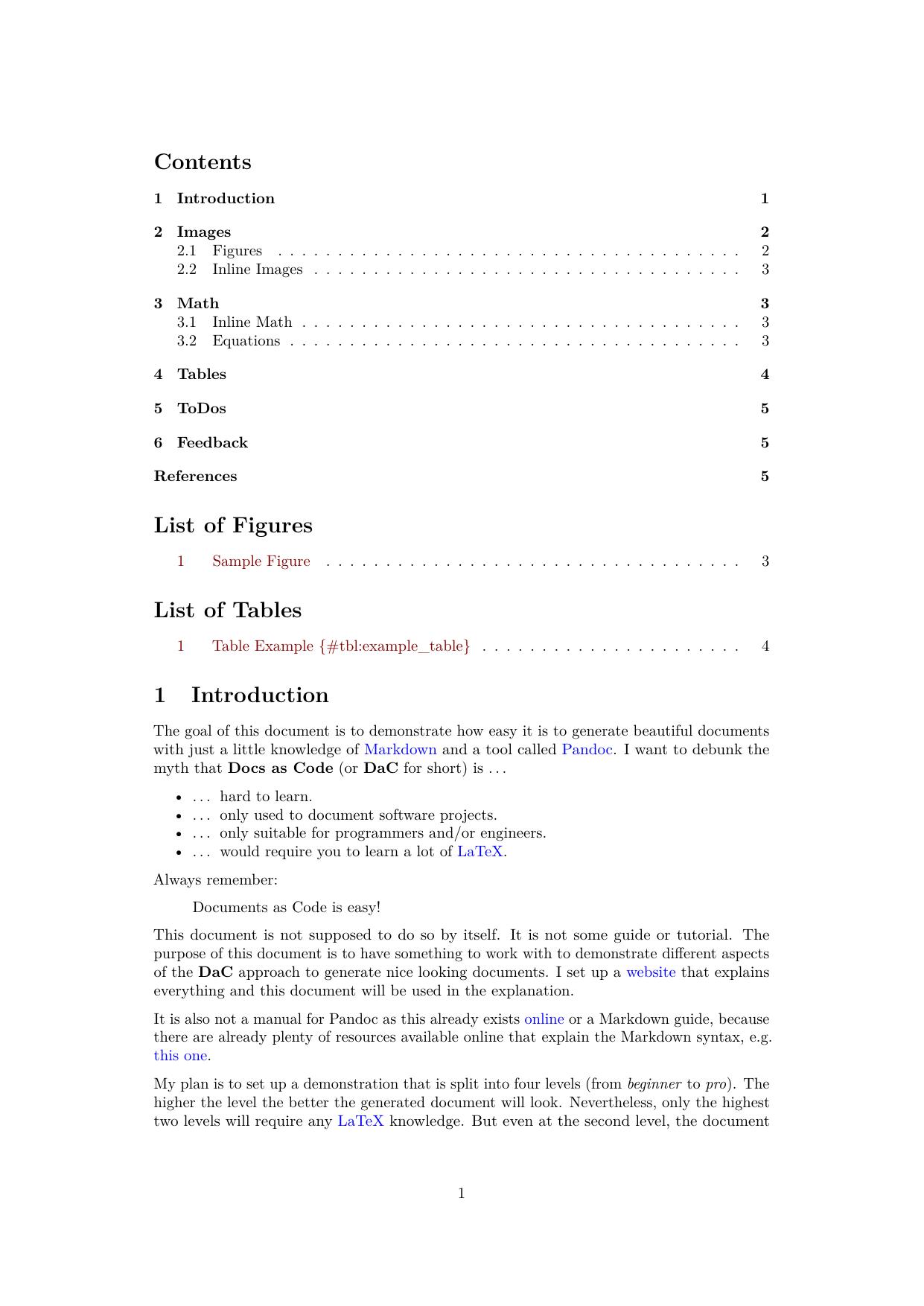
You can see the Table of Contents, the List of Figures, and the List of Tables. The margins around the text area have been reduced, and all links the document are now colored (look for example at the word "Markdown" in the first paragraph of the first section).
urlstyle: tt
This line influences how URLs are rendered. On the last page of the output
file, you can see two URLs in the Feedback section. Play around with the
urlstyle to see what you like most. Available options are for example: tt,
rm, and st.

bibliography: src/bib/bibliography.bib
reference-section-title: References
link-citations: true
link-bibliography: true
These four lines, combined with the --citeproc option in the command line,
handle citation rendering, generate a reference list, and apply basic
formatting to these features. You can explore additional variables like csl,
links-as-notes, and notes-after-punctuation in Pandoc's User's
Guide. Here’s a closer look at what each of
the four lines does:
bibliography: Specifies where Pandoc/LaTeX can find the bibliography file containing the references.reference-section-title: Defines the title of the references section in the document (e.g., "References").link-citations: Ensures that in-text citations are hyperlinked to their corresponding entry in the reference section.link-bibliography: Makes sure that URLs that might show up in the reference section are rendered as links. The default citation style (that you could change with thecslvariable) does not include any links in this particular case.
You can find an example of a citation on the fourth page of the output.

And the reference section on the last page.

To learn more about these options, check out Pandoc's user guide. There you can find all the mentioned variables and some more that you might find interesting:
All right, this level massively improved the look and feel of the document, but there are still some minor issues. One, for example, is that links to figures and equations don't work yet. As you can see here:

and here:

We will fix this in the Advanced level, but for now, let's conclude the Intermediate level by looking at the current state of the project directory.
$ tree
.
├── build
│   ├── solution_beginner_1.pdf
│   ├── solution_intermediate_1.pdf
│   ├── solution_intermediate_2.pdf
│   └── solution_intermediate_3.pdf
├── img
│   └── image.jpg
└── src
    ├── bib
    │   └── bibliography.bib
    ├── md
    │   ├── front_matter.md
    │   └── solution.md
    └── meta
        └── style_intermediate.yml